Your whole shop. One live picture.
Every job, every department and every rand in one place, kept current by the people doing the work. Know where each job stands, what it really costs and what it's waiting on, today, not at month end.
- Start with one department
- Tablets on the floor, PCs in the office
- Every change logged


Every screen on this page is the real product, from the Highveld Fab demo shop.
Your departments, in your order, in your words. No consultant's vocabulary to learn.
See it in two minutes.
The whole shop, from quote to dispatch, on real screens.
Where's that job right now?
In most job shops the answers live in somebody's head, a spreadsheet and a pile of paper. They only line up when someone loses a Friday afternoon making them agree.
Your whole shop in six numbers.
Sixty-three overdue. Not comfortable, but you're seeing it now, not at month end. And where ShopFloor can't see a figure, it leaves it blank rather than guess.
Figures from the Highveld Fab demo shop.
Monday morning, in one list.
Needs attention puts every overdue job, every job with an open issue and every follow-up that is due on one page, with the client, the department it's stuck in and who's responsible.
- Sorted by how late, worst first
- Notes and follow-ups on the job, not on a sticky note
- Search and filter the list your way

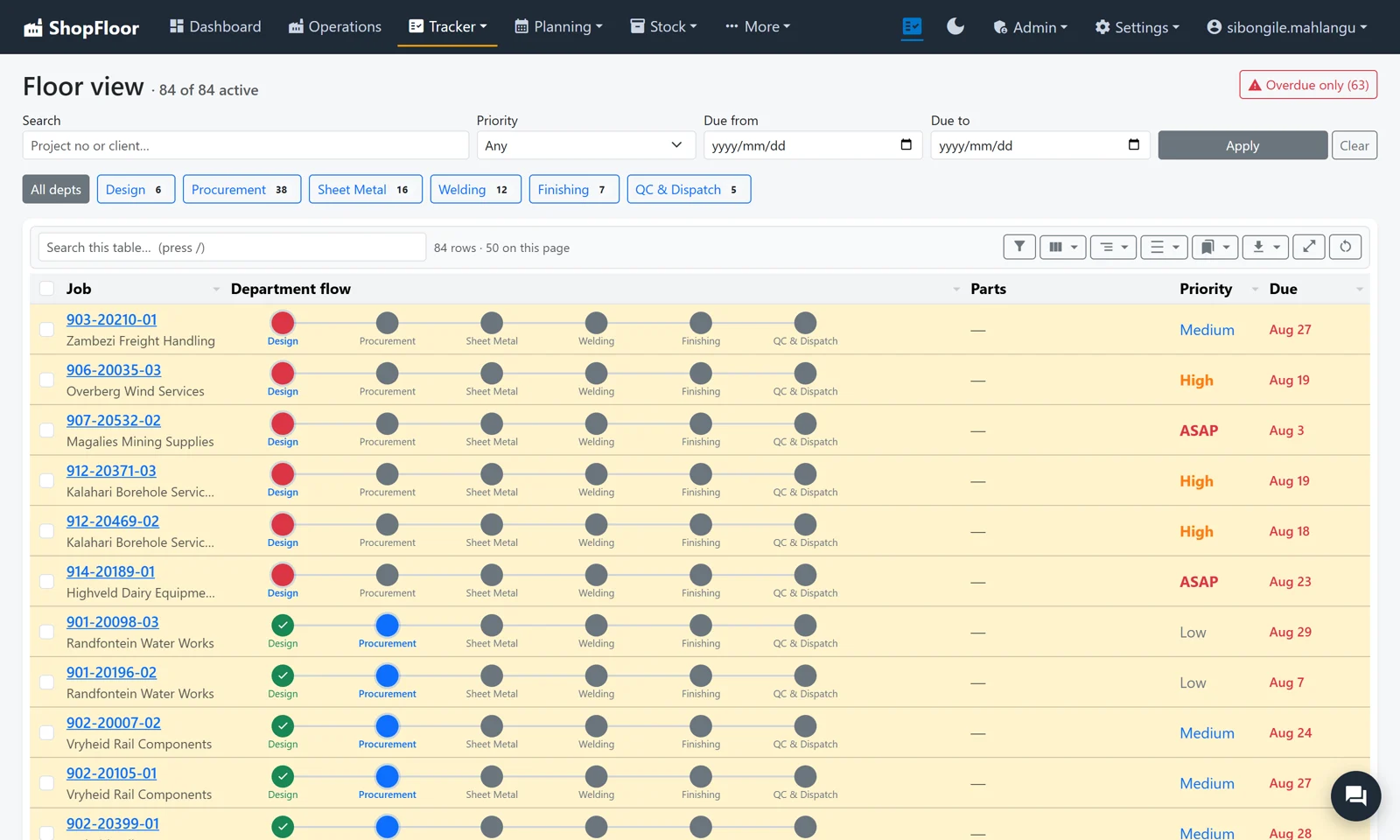
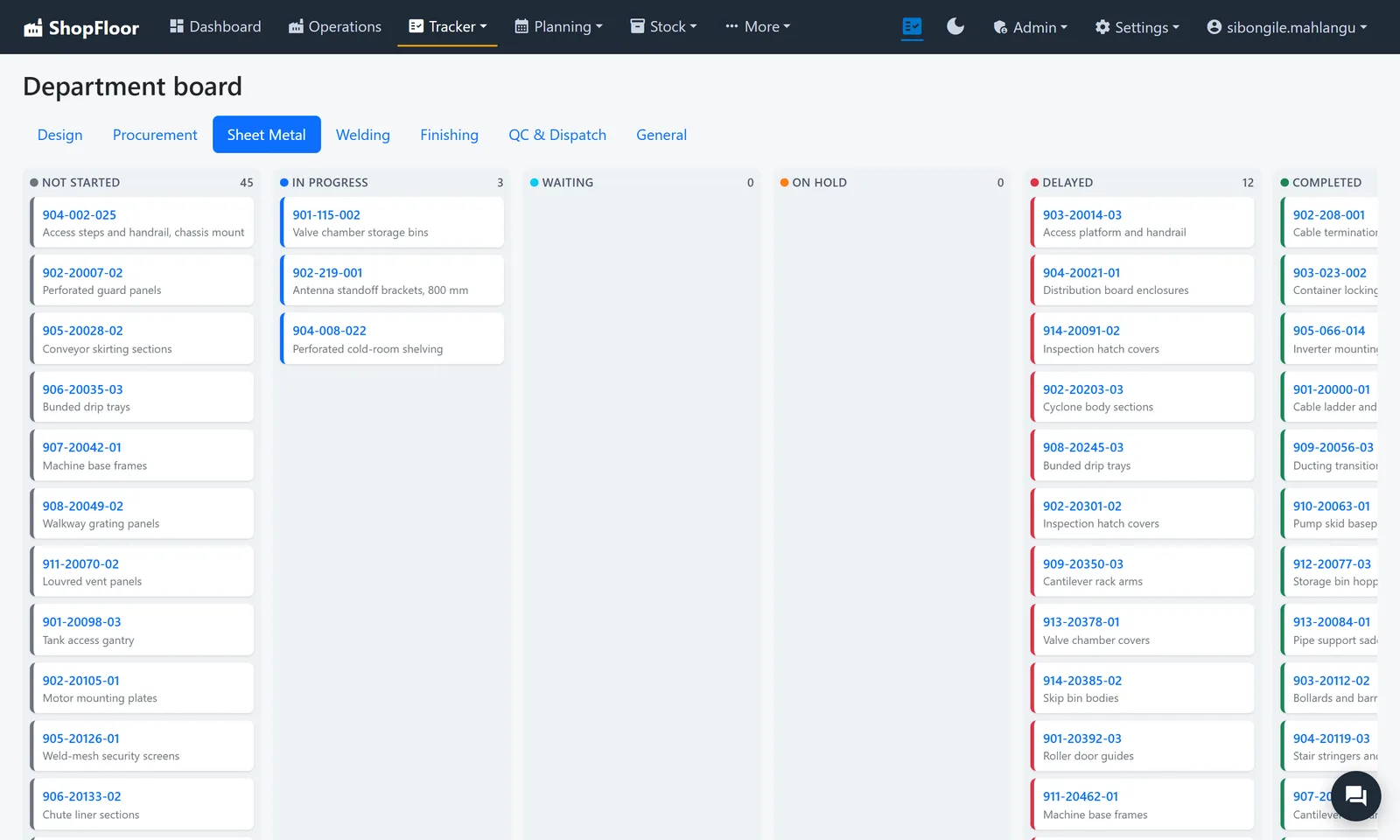
Where the colour stops, the job is standing.
Every job moves through your departments in order. ShopFloor shows exactly how far it got, and writes the reason it's stuck right beside it.
One system. One record per job.
A job is costed, quoted, bought for, planned, made, checked and shipped in the same place, so every step reads what the last one wrote.
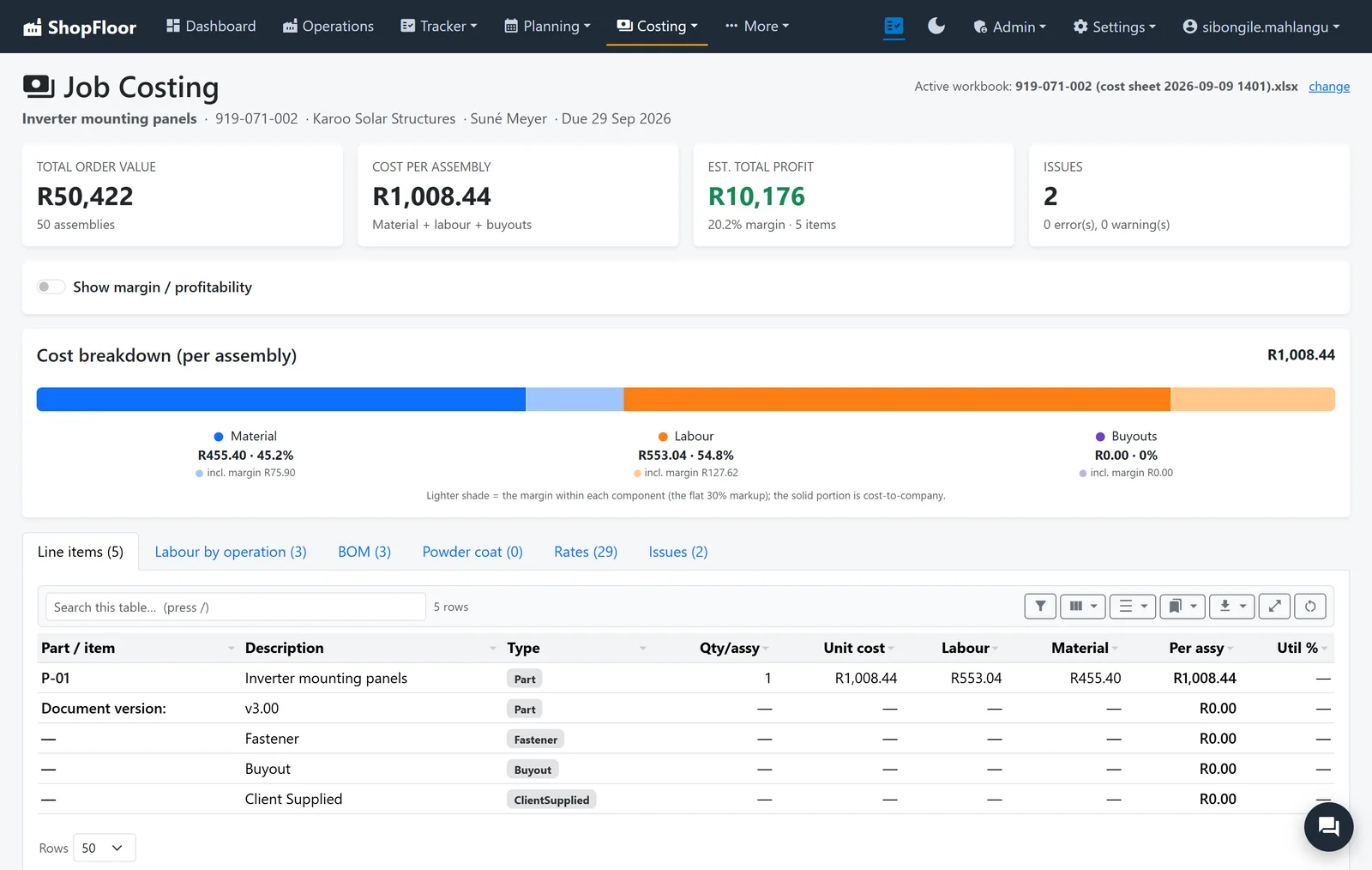
Know the margin before you name a price.
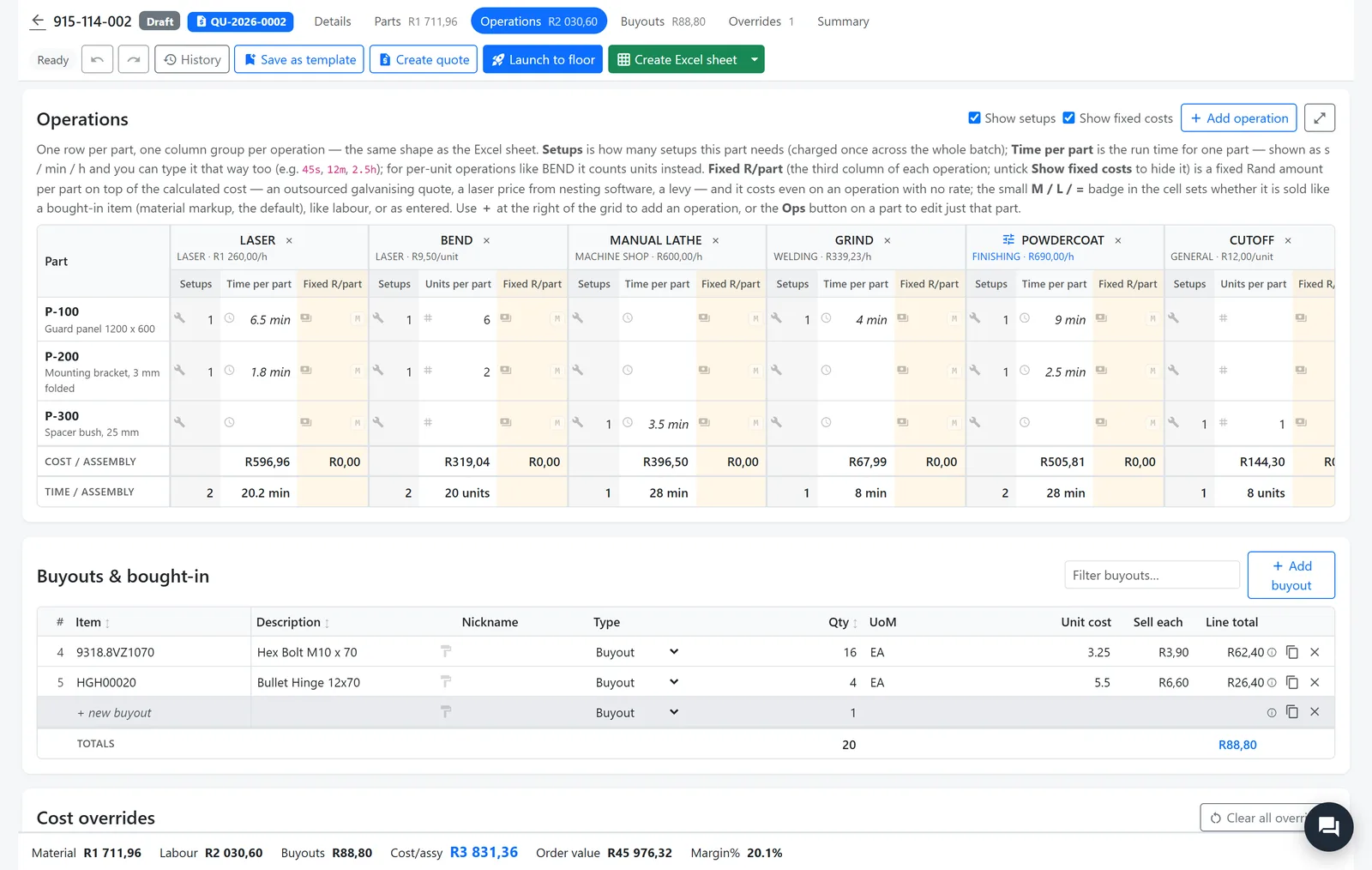
The Cost Sheet Studio puts every part, operation, material and buy-out on one live sheet, priced from your own rate card.
- Rates at cost to company, with separate markups for labour and for material
- Saved as you type, with restore points to step back to
- Launch to floor turns the finished sheet into route cards
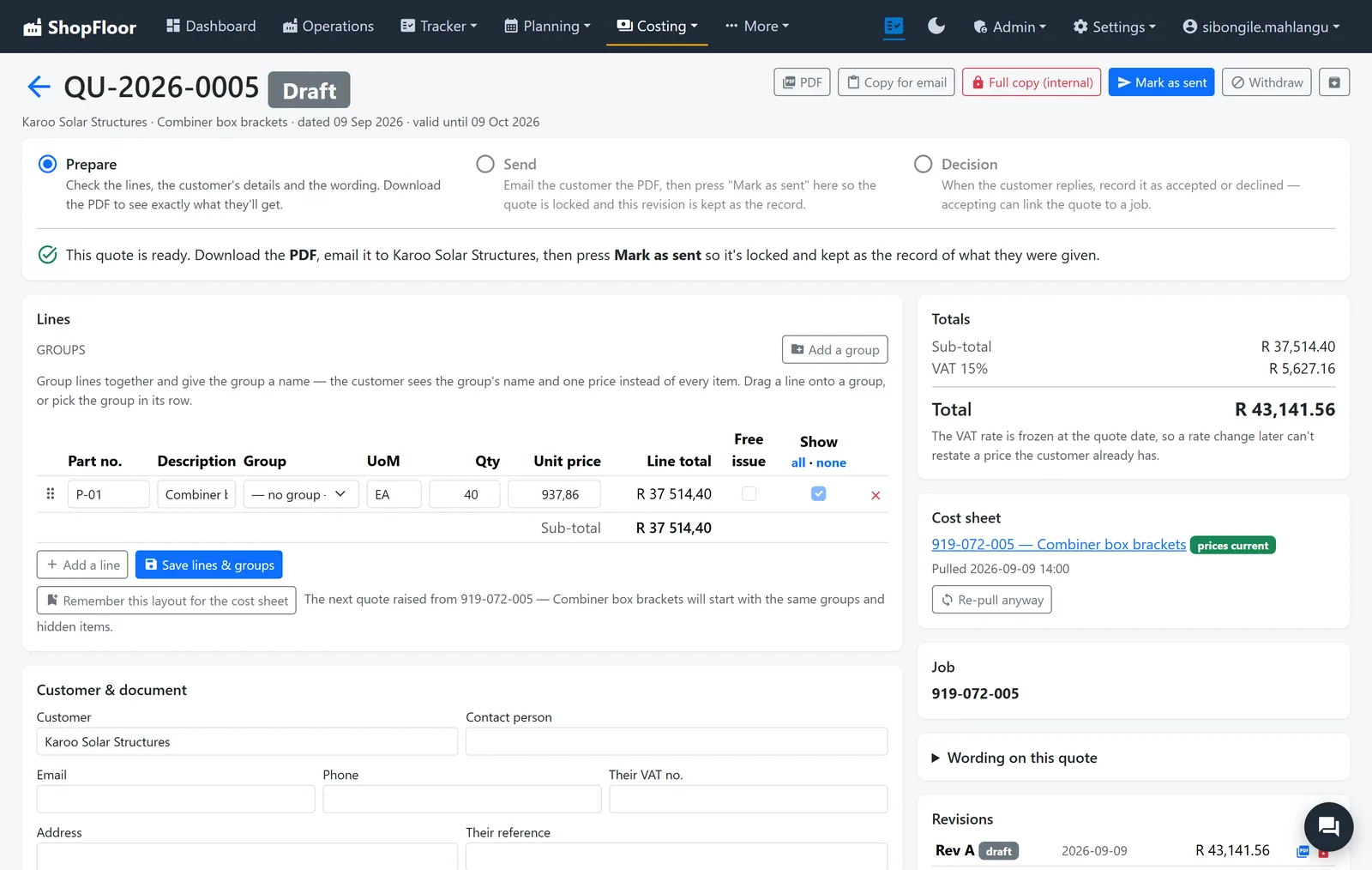
Quote fast. Never leak your cost.
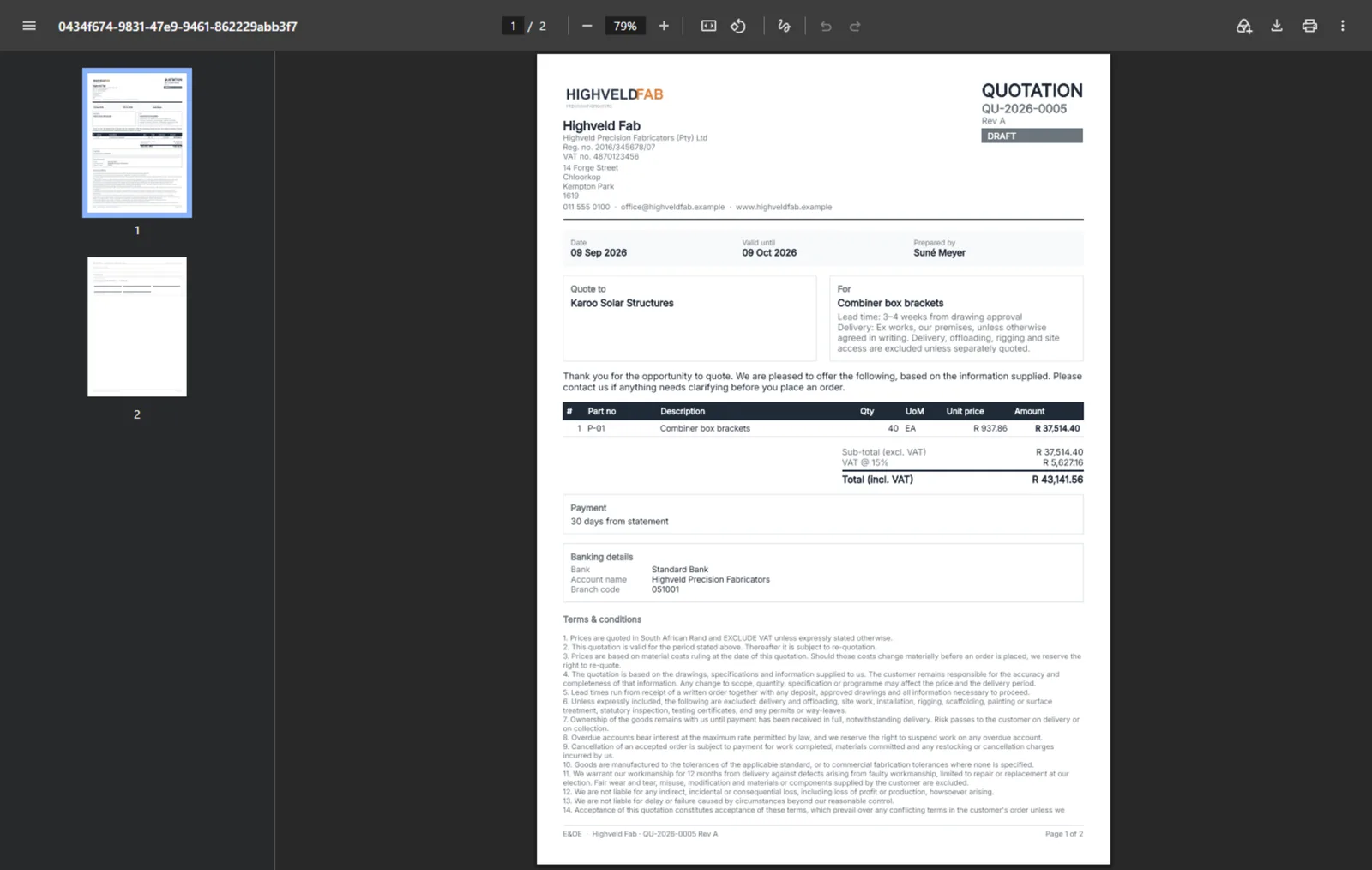
A quote is built straight from the cost sheet: group the lines, set the wording, download the PDF and mark it sent.
- The customer's document cannot carry cost, markup or margin. It's built that way, not just hidden
- Every revision kept as sent, and stale prices flagged
- Your own terms and wording, set once
No job waits for steel.
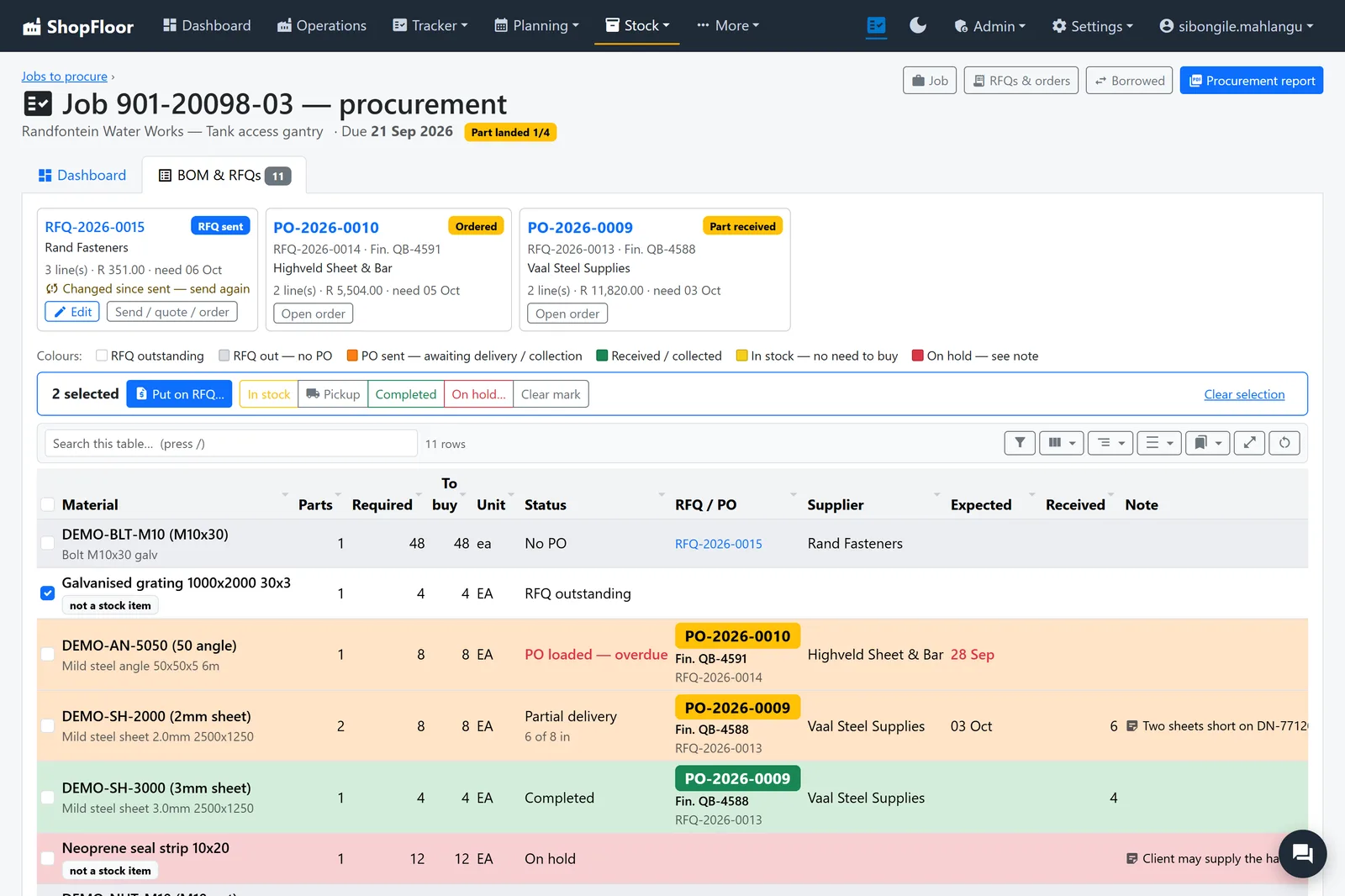
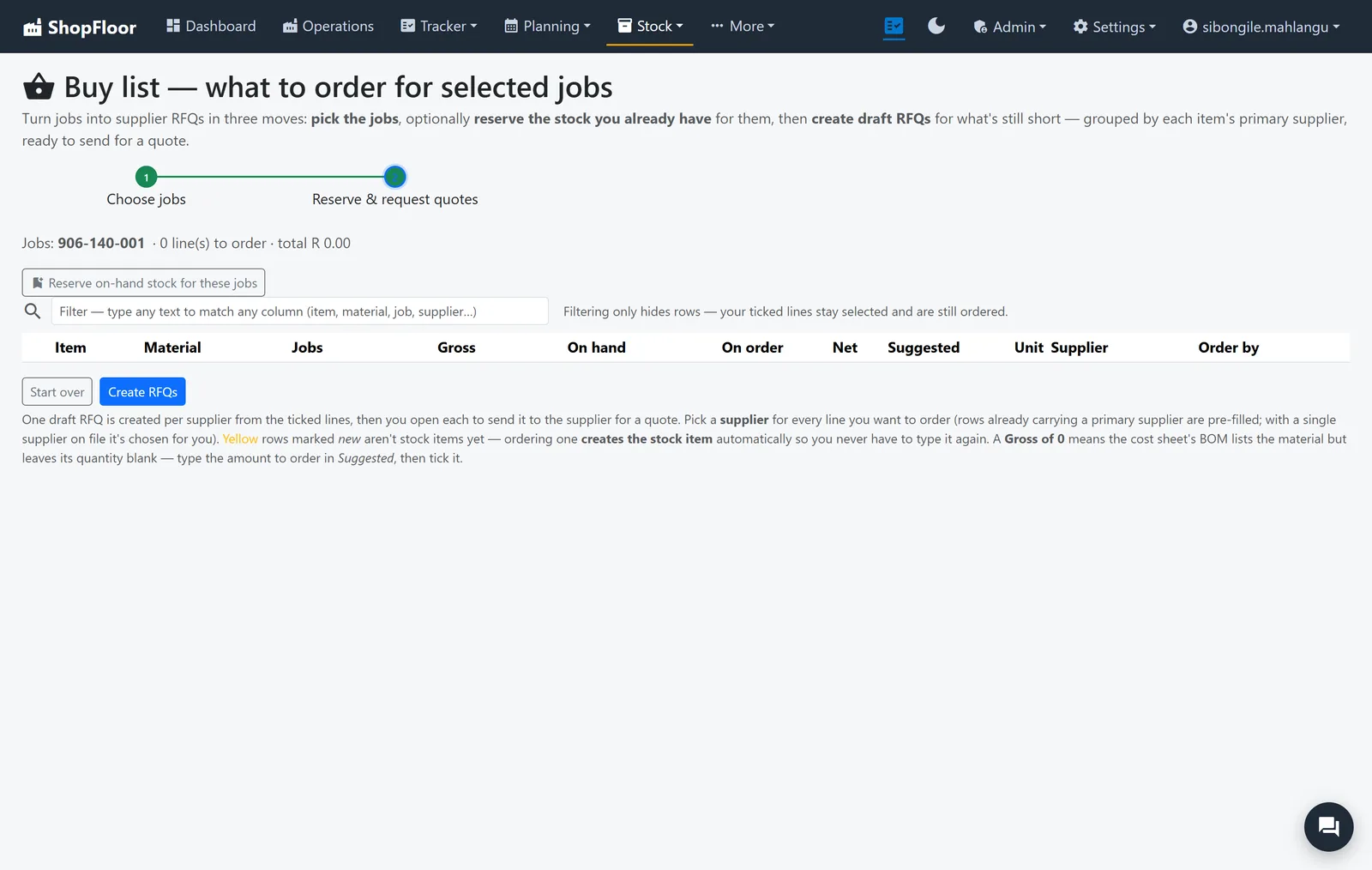
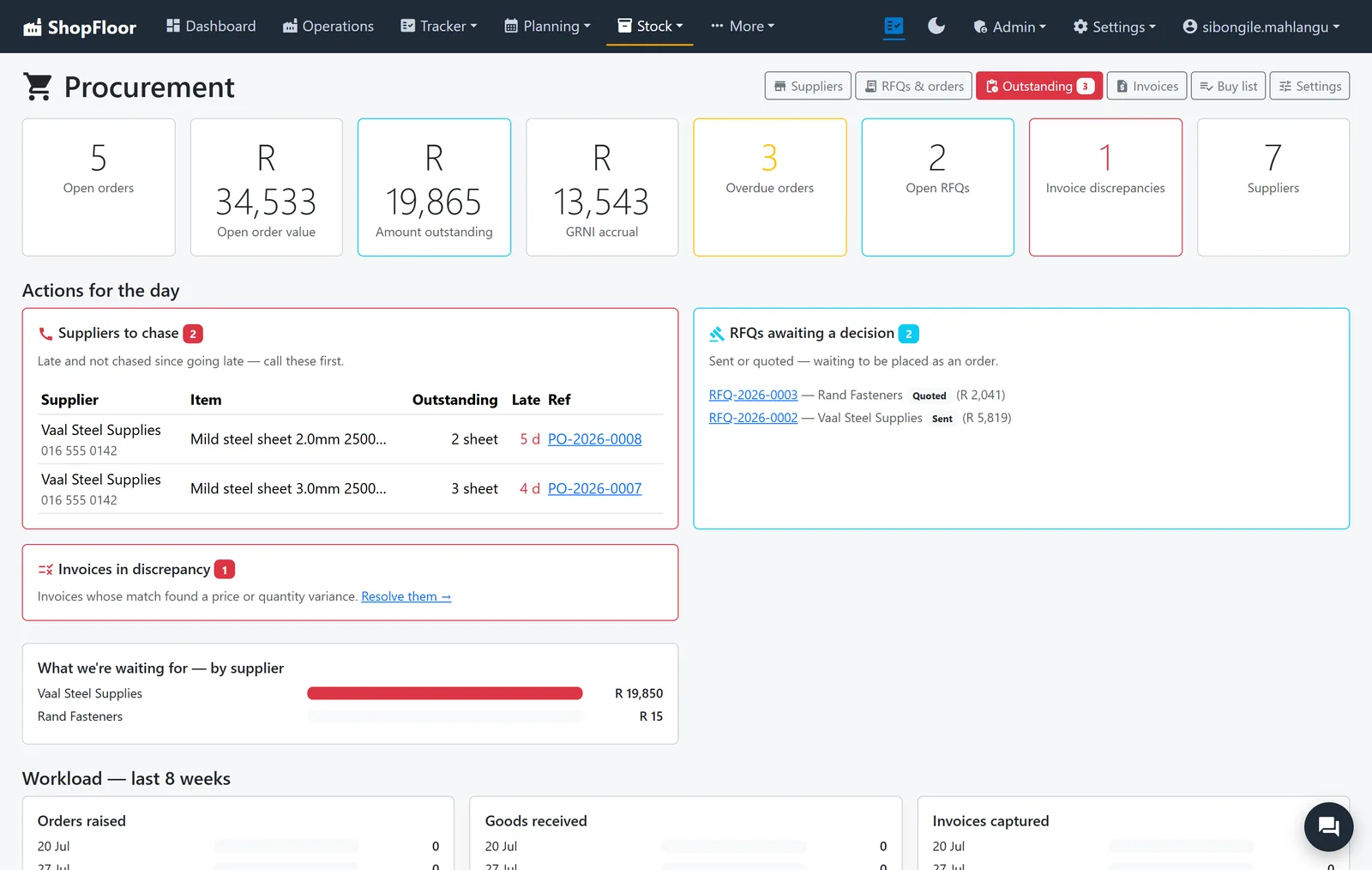
The buy list writes itself from your jobs' material. Reserve what you already have, then request quotes for what's short.
- RFQs, orders and deliveries, grouped by supplier
- One board per job shows what's ordered, late or in
- Suppliers to chase, at the top of the day's list
Stock you can count on.
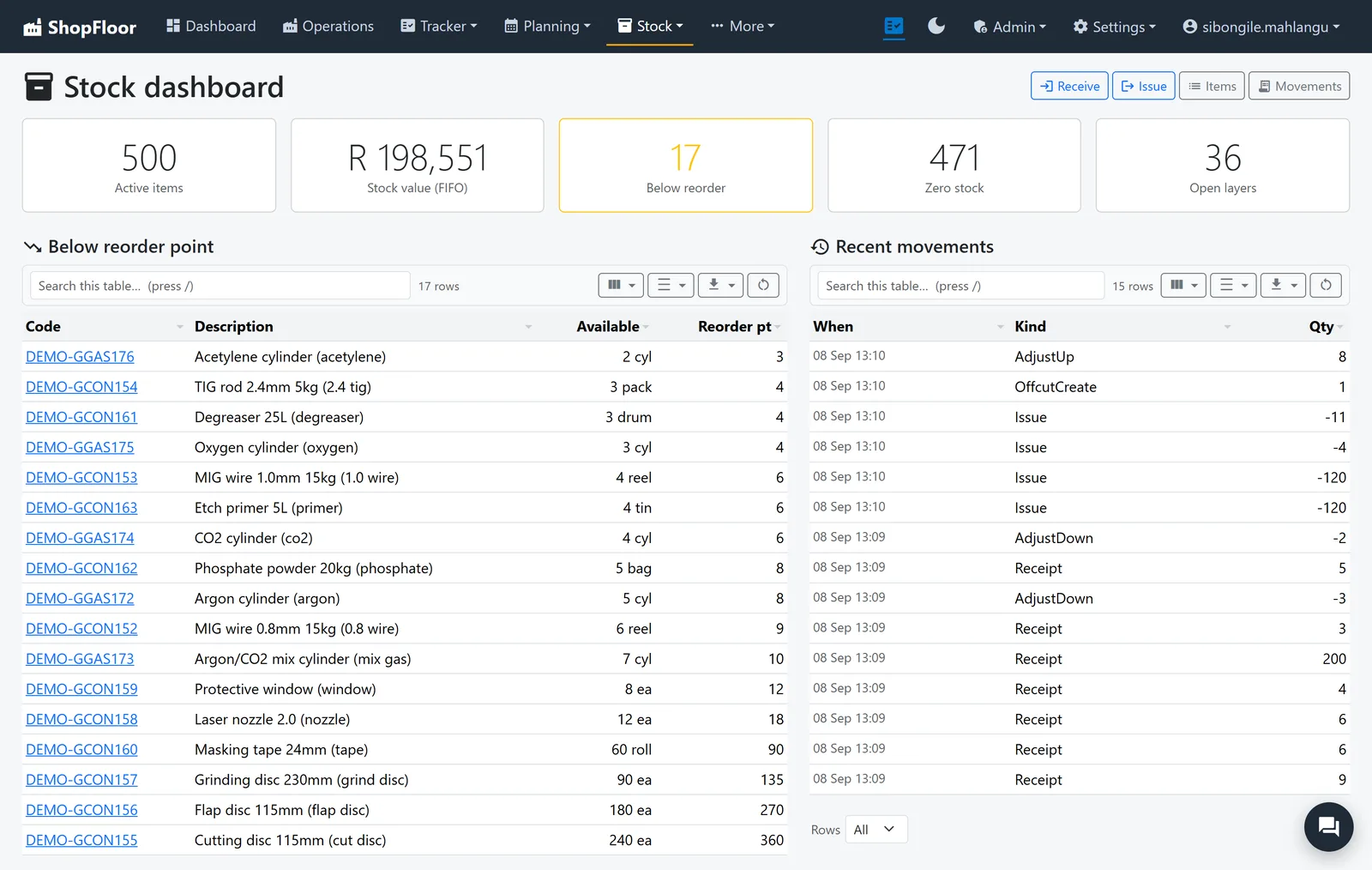
Every receipt, issue and adjustment goes through one ledger, valued first-in, first-out, so the value on screen is the value on the rack.
- Offcuts recorded as stock, so they get used
- A below-reorder list, and stock counts with every adjustment recorded
- Supplier invoices matched to the order and the delivery
Plans that hold.
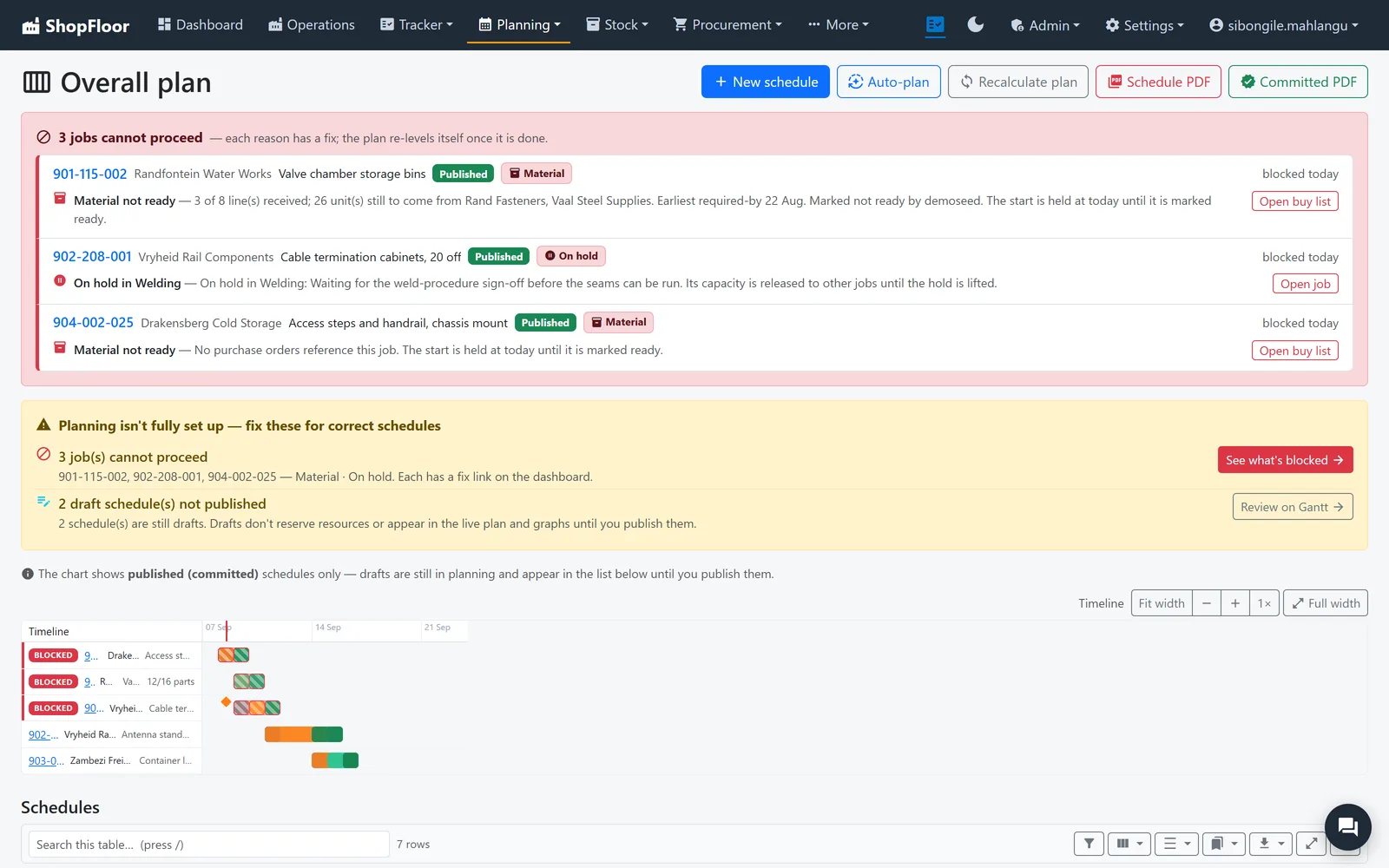
Schedule against real people and real machines. The plan can't promise work to someone on leave, or to a machine that's down for service.
- Only people qualified for an operation are given it
- Blocked jobs say why: material not ready, on hold, waiting
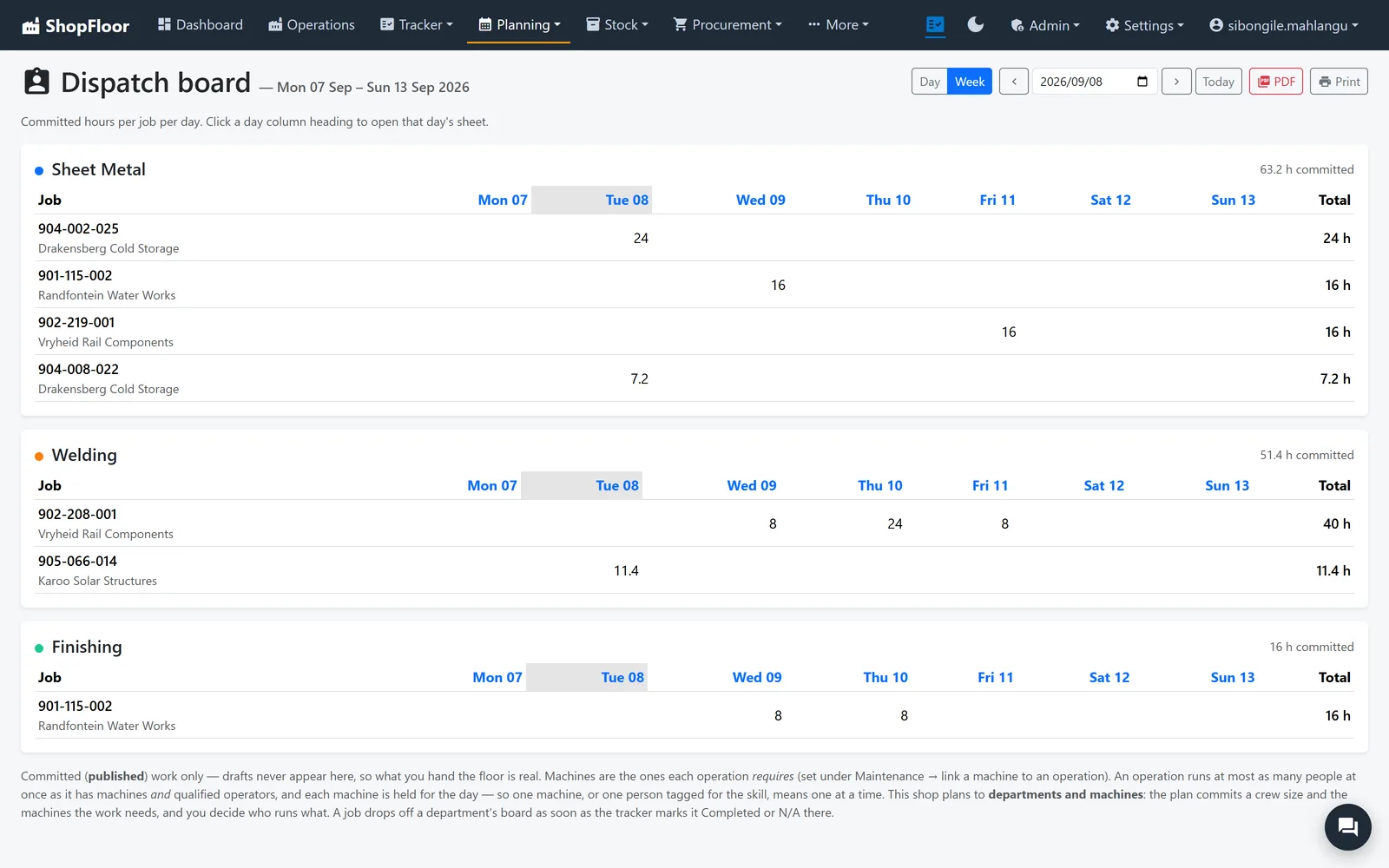
- A dispatch board per department, and drafts nobody sees until you publish
Every part, every step.
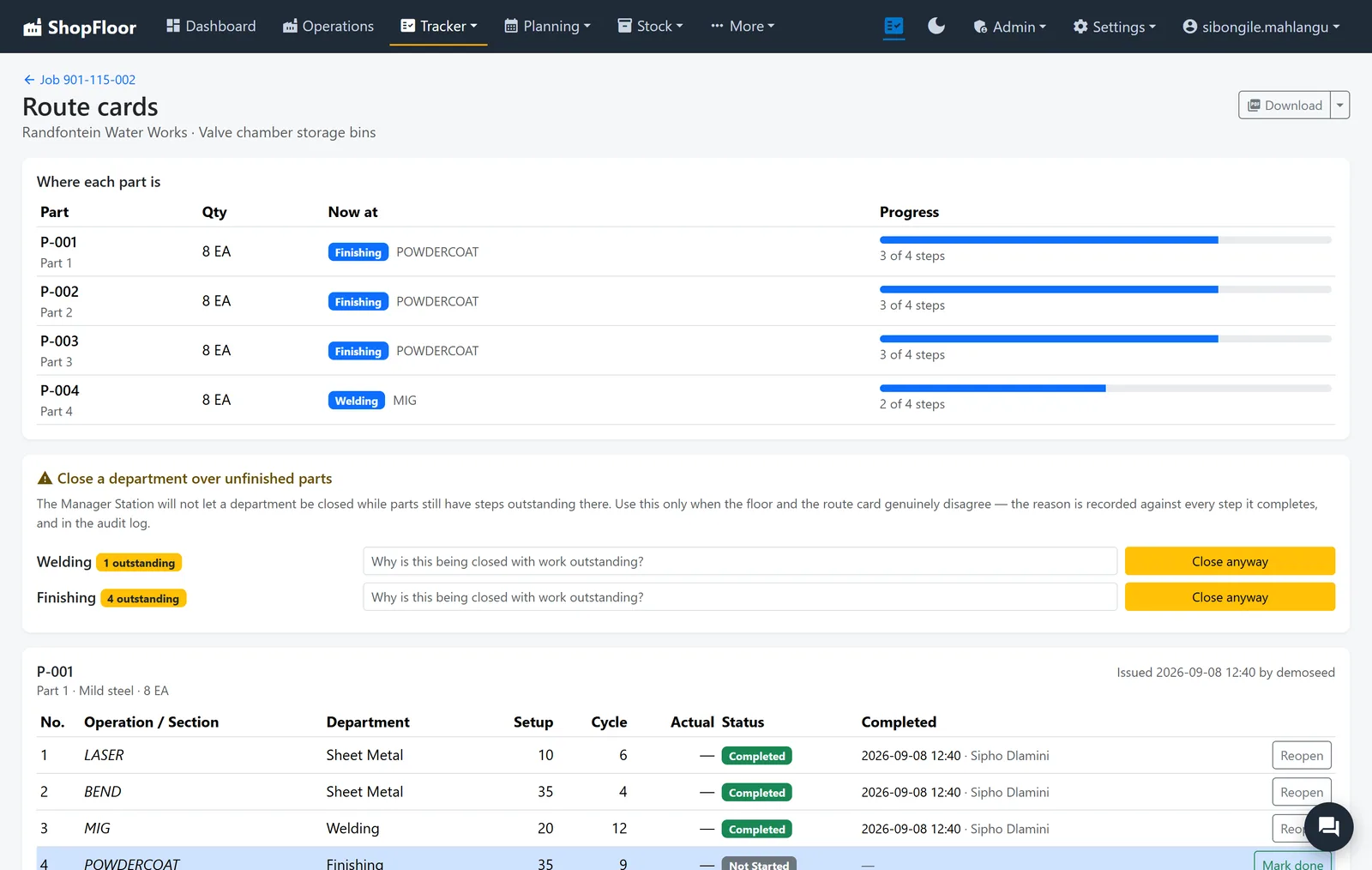
Launch a cost sheet to the floor and each part gets its own route card, from laser to powder coat. Parts move on their own, so one late part doesn't hide the rest.
- Where each part is now, and how many steps it has left
- A department can't be closed on the floor with parts still outstanding
- Printable route cards to travel with the work
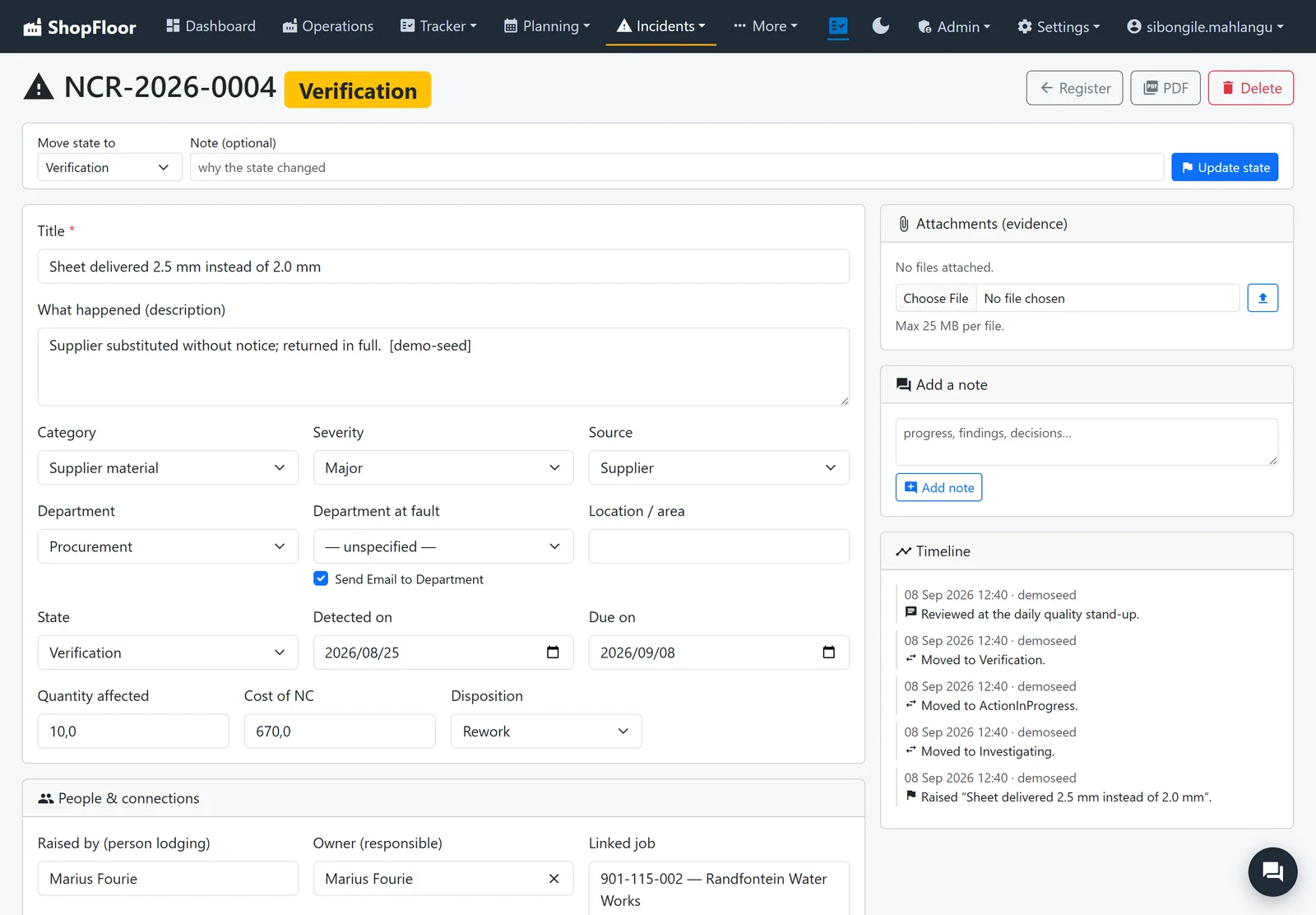
Problems get a cause and an owner.
Raise a non-conformance from the office or the floor, with the people, machines and photos involved, and follow it through to a disposition.
- An NCR register, dashboard and monthly report
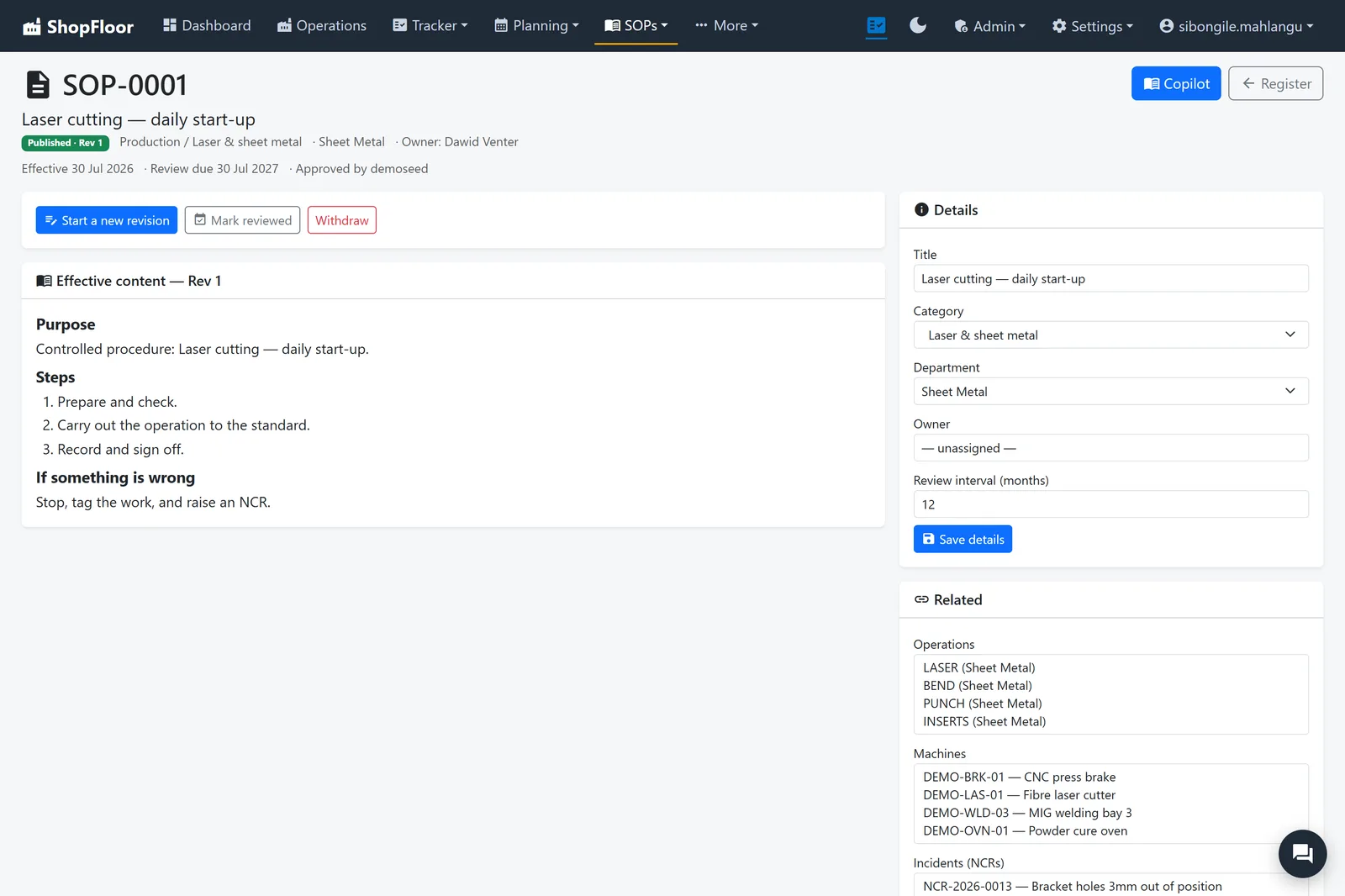
- SOPs as controlled documents: Draft, Approved, Published
- Procedures linked to the operations, machines and NCRs they cover
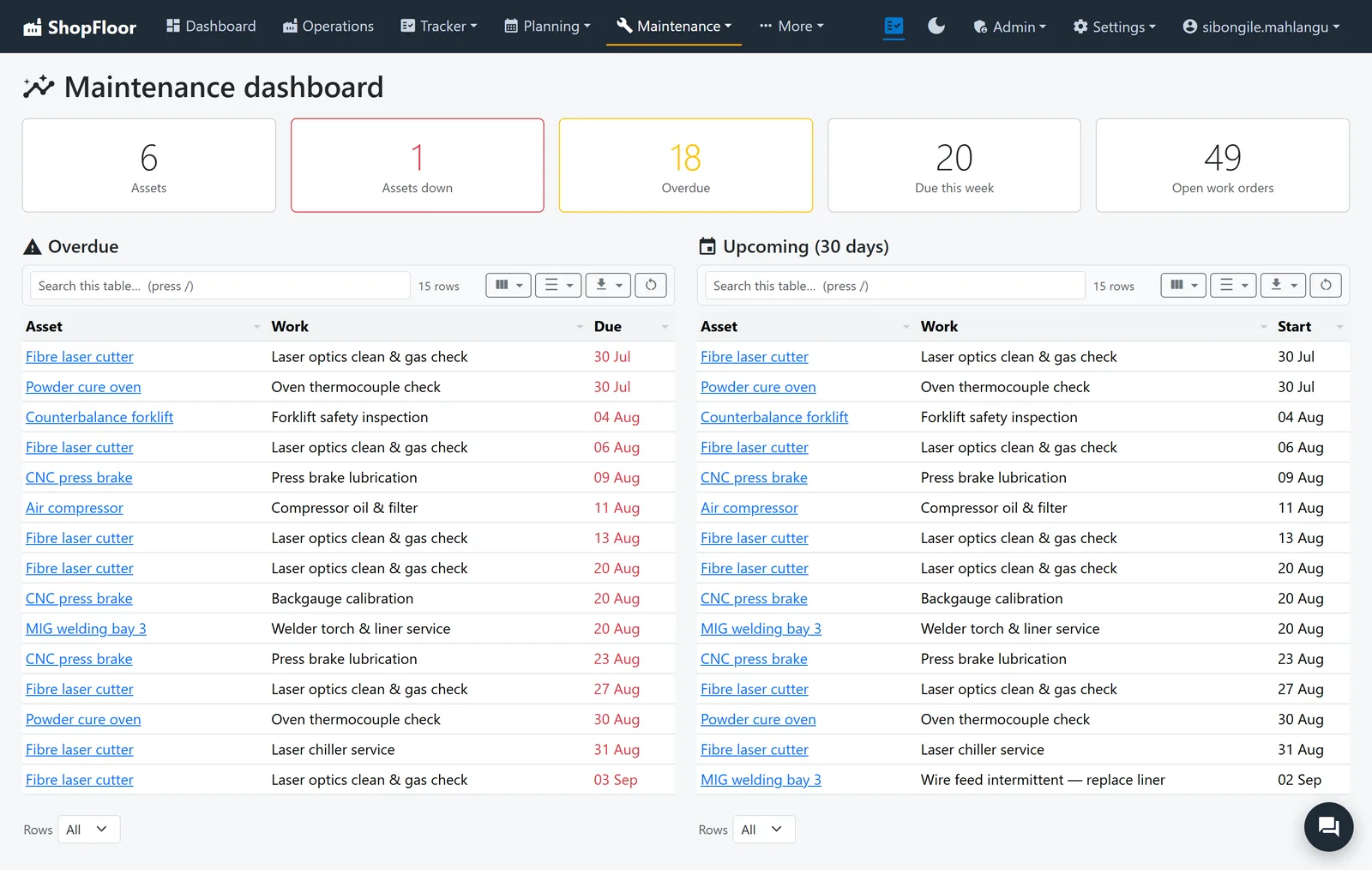
Machines that don't surprise you.
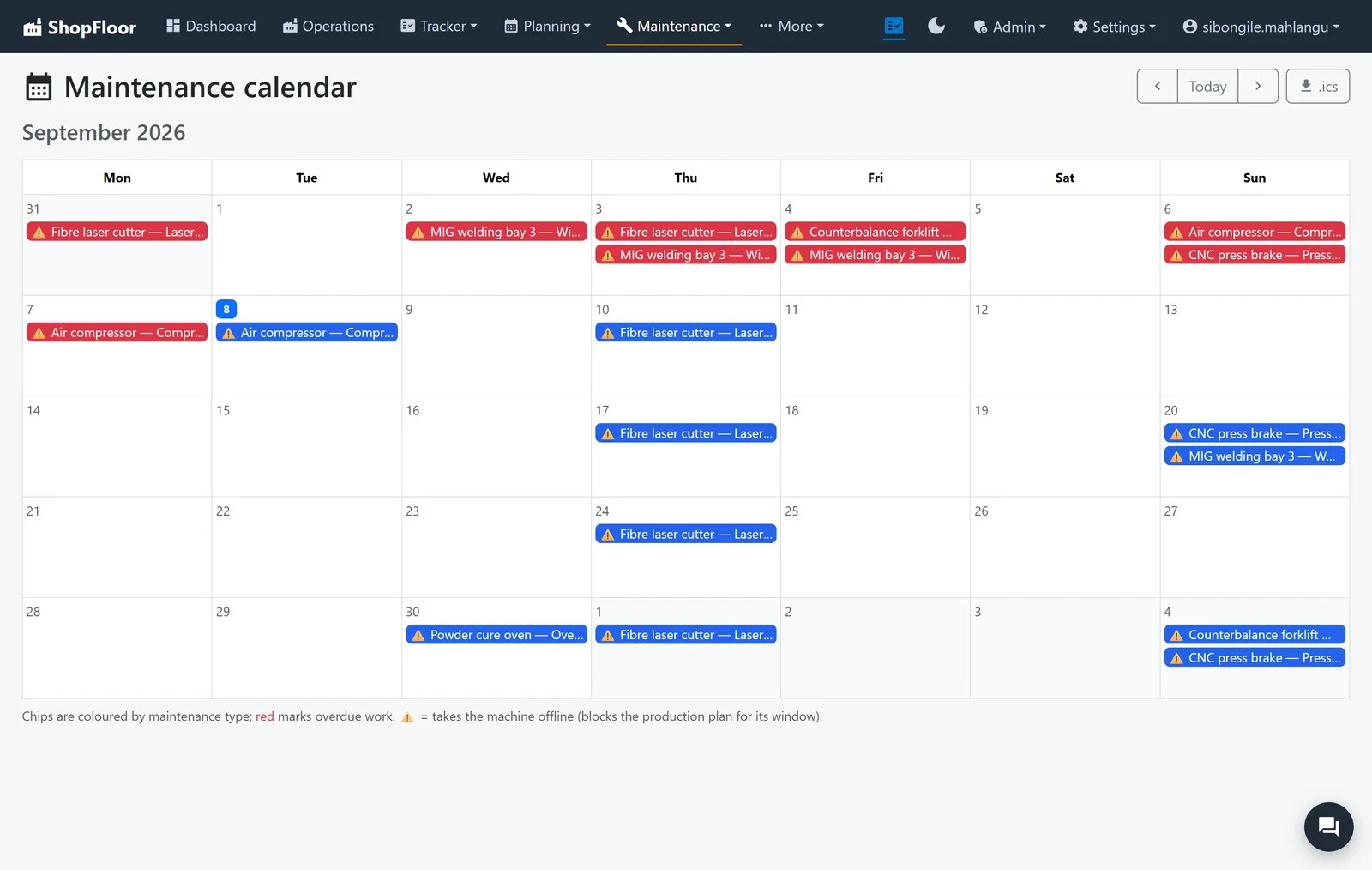
An asset register and maintenance plans that raise their own work orders, on a calendar everyone can see.
- Planned downtime blocks the production plan automatically
- Spare parts on hand, and which machine uses them
- Raise an NCR straight from a machine
Four taps to clock on.
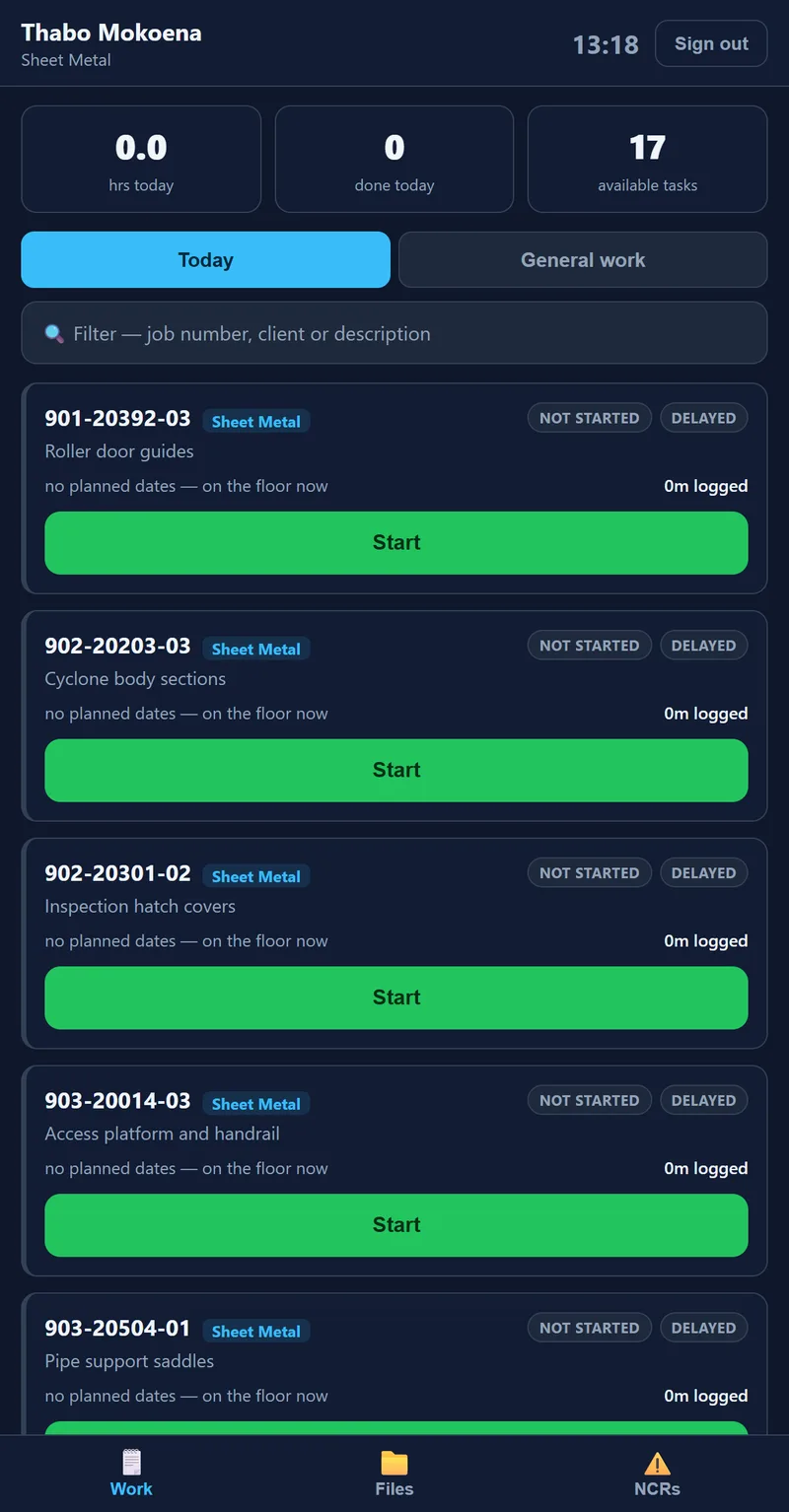
A tablet at each work centre. Big type, big buttons, no menu to get lost in. The office sees the work the moment it starts.
-
1Employee number
The number HR already gave you.
-
2Your PIN
Chosen by you. Nobody can see it, not even HR.
-
3Pick the task
Only the work waiting for you is on the list.
-
4Start
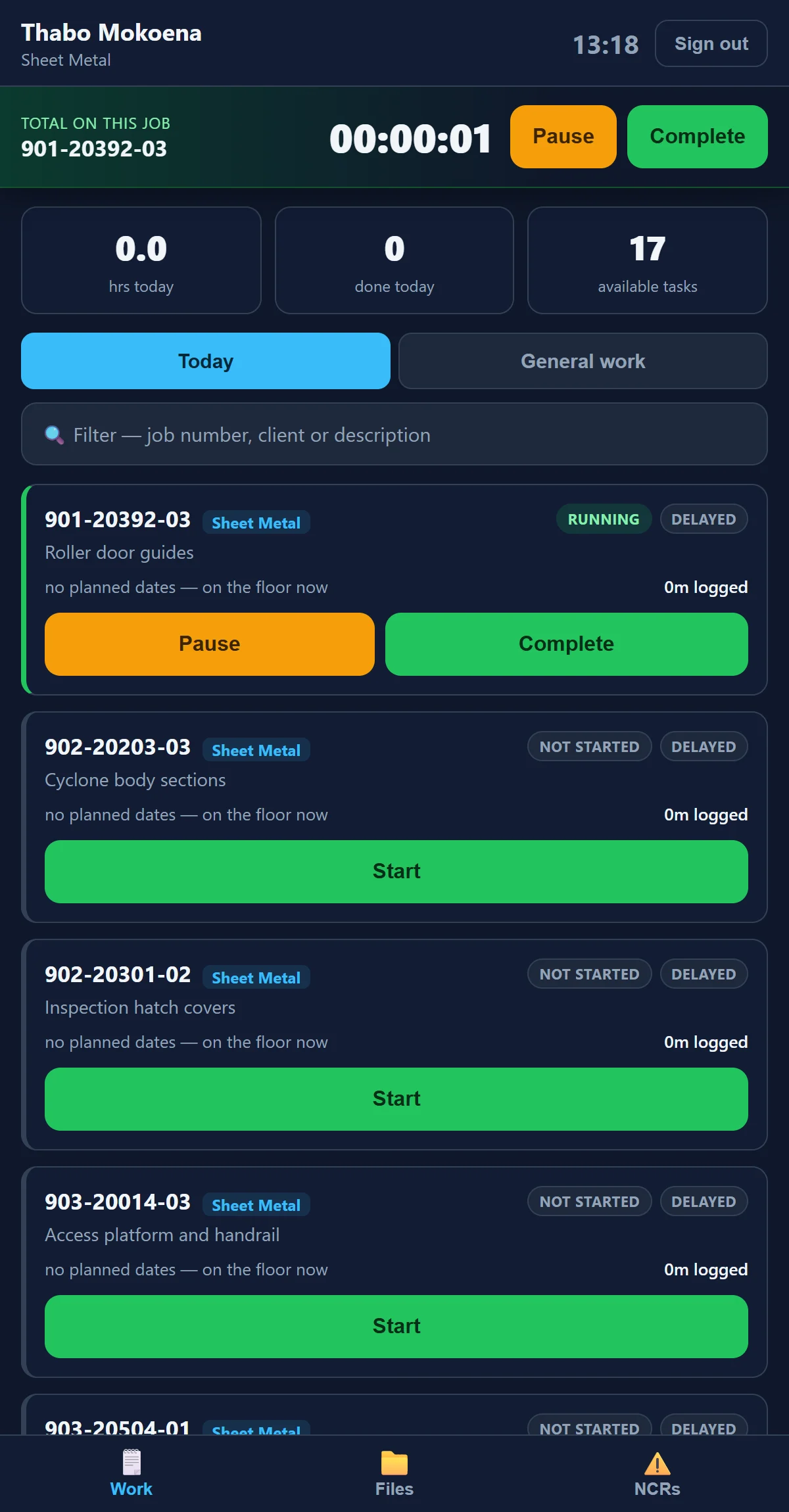
The timer runs. Pause or Complete when you're done.
Clocked time, straight into the plan.
No time sheets to type in on Friday. Every start, pause and complete flows into planning, costing and the dashboard as it happens, so you know what a job really took.
- Shared tablets sign themselves out when you walk away
- Raise an NCR from the tablet, where the problem is
- Wall screens show the day's hours and open NCRs

Run your department from the floor.
Supervisors see their department's jobs on one board: what's behind, who's on it, what's next. Advance a job, hold it or flag it priority without walking to the office.
- Undo a completion for 24 hours
- Every change logged, field by field
People use what they understand.
A system only works when everybody uses it. So ShopFloor teaches itself: every role gets a course inside the app, and nobody has to wait for a trainer to visit.
-
01Watch
A short video of the real screens.
-
02Read
A page in plain words, with pictures.
-
03Answer
A few questions, explained when you get one wrong.
-
04Final exam
Every section passed opens the exam.
-
05Certificate
Dated, printable, with a badge and points.
Each section repeats Watch, Read, Answer. The exam and the certificate come at the end.
For the people learning
- A curriculum per job title. Give a job title its courses, and everyone with that title is enrolled.
- Learn at the tablet, too. Operators take their course on the Employee Station, signed in with their PIN. No office login needed.
- A nudge where it helps. A screen with a course behind it says so. Nobody is locked out while they learn.
- Badges, points and a rank. Finishing a course feels like finishing something.
For the people running the shop
- The competency matrix. People down the side, courses across the top: who is trained, who is in progress, who is due.
- Refreshers only where it changed. When a screen changes, only the sections that cover it reopen, not the whole course.
- Expiry you can see coming. Certificates expire when you decide, and the report shows who is due before they lapse.
- Write your own. The course editor takes your videos, reading, files and questions, with a review sheet to sign off before you publish.
From the day-one induction to the Admin menu. Each arrives as a draft, so someone in your shop reads it and publishes it in your name.
Ask anything. Approve everything.
The main areas each have a built-in assistant that answers in plain language from your live data. It can draft a change, but nothing happens until a person has seen the before and after and said yes.
Ask
"Which jobs are overdue right now, and which department is the biggest bottleneck?" The answer comes from your data, with links to the jobs.
Draft
"Make that job high priority." The assistant writes a plan. It writes nothing to your data.
You approve
You see exactly what will change, then apply it or not. It can only do what you could do by hand.
The assistants in two minutes: ask, check the numbers, approve a change, get a report, put it on a schedule, connect your own tools.
Everyone sees what they should. Nothing more.
Every button is permissioned, every change is logged and every night is backed up. Your costs stay with the people you trust with them.
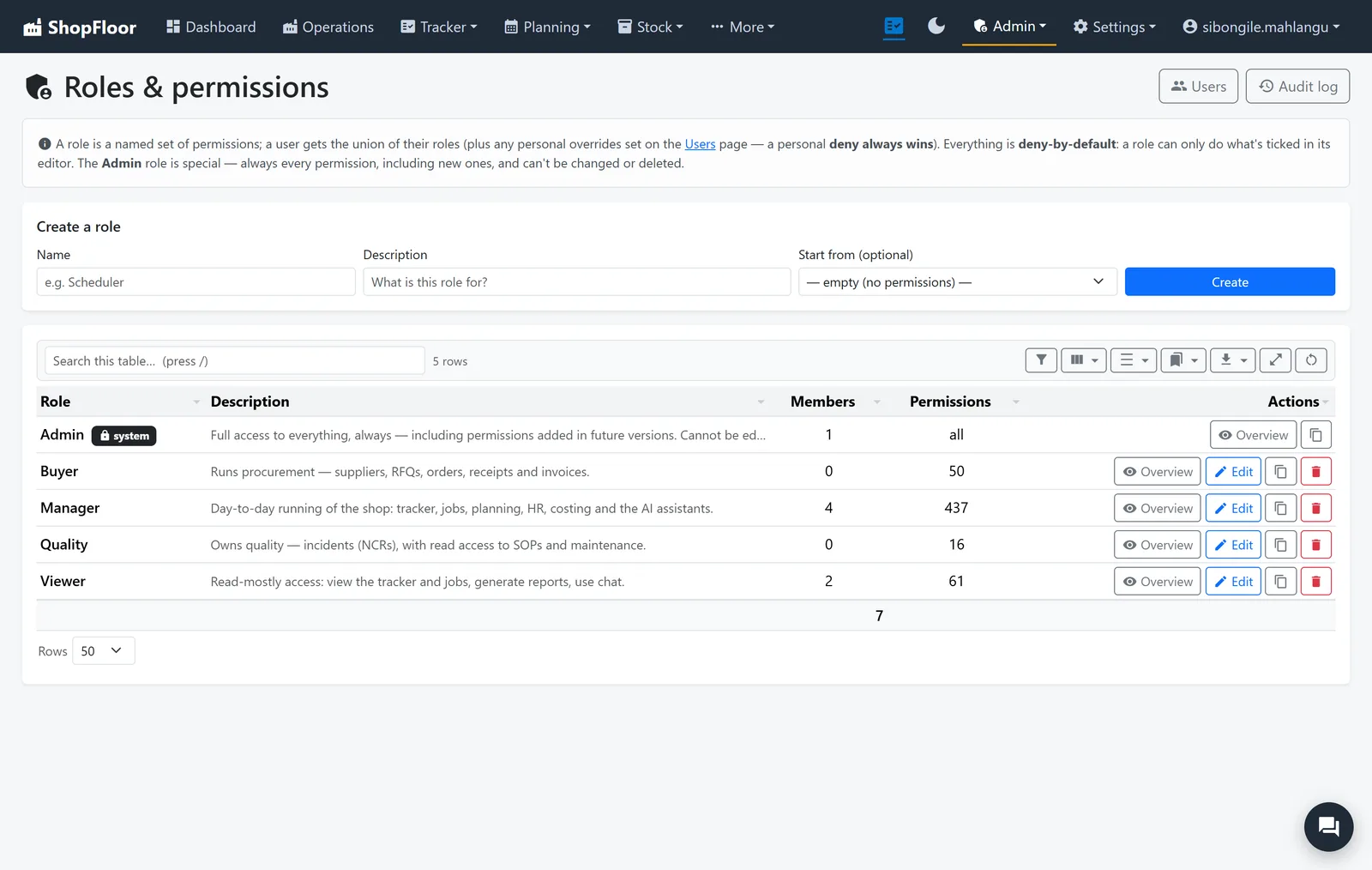
Roles you design
Fine-grained permissions for every page, button and report, grouped into roles that match your shop: buyer, manager, quality, viewer. Deny by default, and refusals never say who else could.
Every change logged
Who changed what, when, and what it was before.
Backed up every night
Encrypted whole-system backups, an off-site copy, and a restore that keeps what it replaces.
Two-factor sign-in
Plus an access plan that limits where each part of the app can be reached from.
People and leave
Employees, skills, leave and public holidays, feeding straight into the plan.
Chat on the job
Talk about a job on the job, and see who's in.
It checks itself
A system health report, red-amber-green, emailed when you want it.
Nobody stops on day one.
Start with one department and grow from there. Everyone keeps working while the shop moves across, one team at a time.
-
1
Set up your shop
Your departments, people, skills and rates, in your own words. The office sees the floor, the dashboard and the Needs attention list straight away.
-
2
Put tablets on the floor
Operators clock on, supervisors run their boards, and the tracker starts keeping itself current.
-
3
Bring in costing, buying and planning
When each team is ready, not before.
-
4
Train people inside the app
Every role has a course with videos, quizzes and a certificate, so a new starter learns your way of working.
Questions owners ask.
Do we have to switch everything over at once?
No. Start with one department or one team, and bring the rest in when they are ready, not before.
What do the floor tablets need?
A web browser. The Employee Station is a page with its own sign-in by employee number and PIN, separate from the office logins.
Can the AI change things by itself?
No. Assistants can read and draft, never write. Every change they propose waits for a person to approve it, and they can only propose what that person could do by hand.
Who gets to see our costs and margins?
Only the roles you give that permission to. Where someone isn't allowed a figure, it simply isn't there, in the app, in reports and in assistant answers. And a customer's quote can never carry it.
What happens if something goes wrong?
Every night the whole system is backed up and encrypted, with an off-site copy. A restore always keeps the data it replaces, so it can be undone.
 ShopFloor
Want to see it on your own jobs? Contact us for more details, and we'll walk you through it in a short online meeting.